

3.9 KiB
Add Microsoft Entra ID as an Identity Provider in Keycloak
Goal: Connect your Microsoft Entra application (from the previous guide) to Keycloak using OpenID Connect so users can sign in with their Microsoft accounts.
Prerequisites
From the Entra guide you should have:
- OpenID Connect metadata document URL
- Application (client) ID
- Client secret (Value)
- (Optional) Tenant ID — useful to verify you used the correct discovery URL
You'll also need:
- Access to the Keycloak Admin Console
- The realm where you want to add the provider (e.g.,
Digitalboard) - The alias you decided on (this must match the alias in the Entra Redirect URI)
Step 1 — Open Identity Providers in your realm
- In Keycloak, switch to the target realm (e.g.,
Digitalboard). - Navigate to Configure → Identity providers.
- Click Add provider → OpenID Connect v1.0.
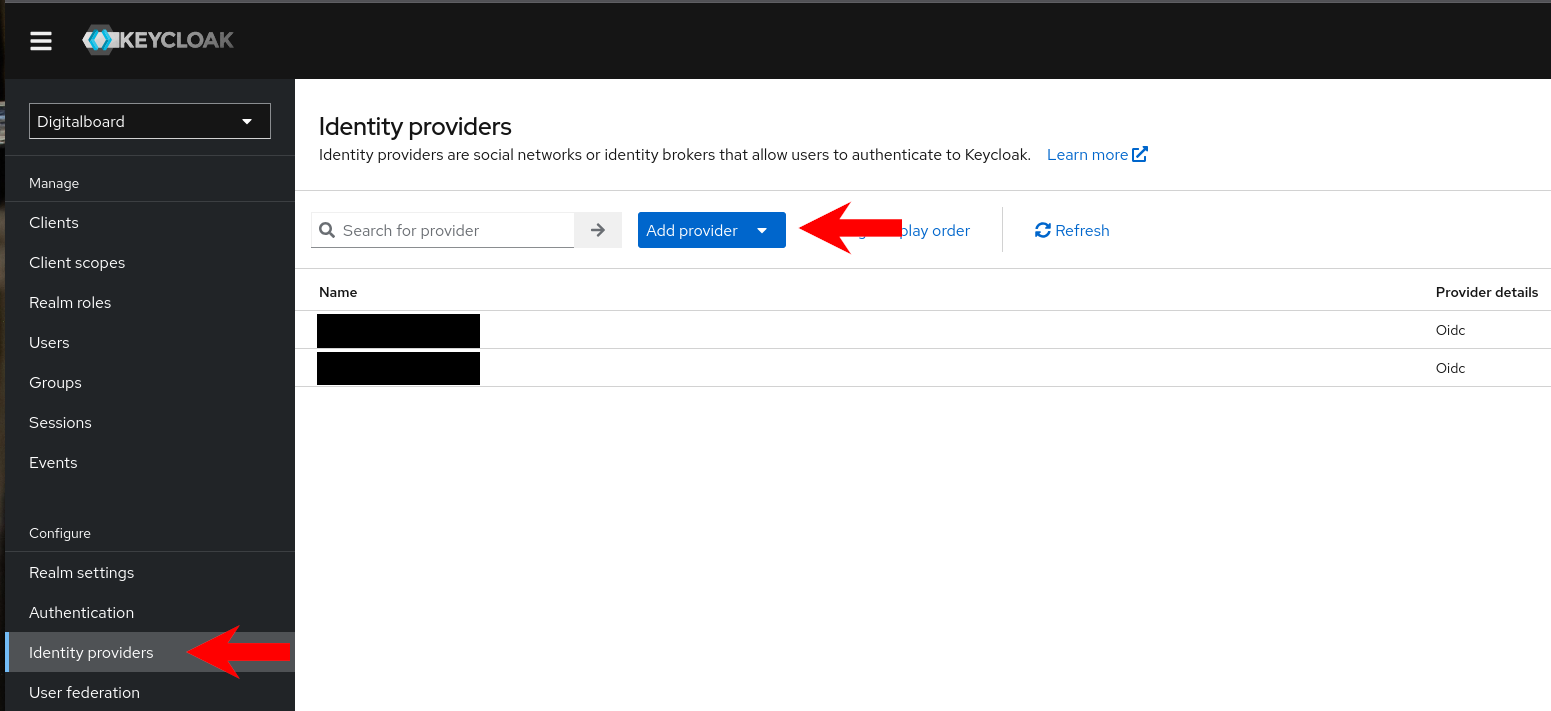
Figure 1: Adding an OIDC provider.
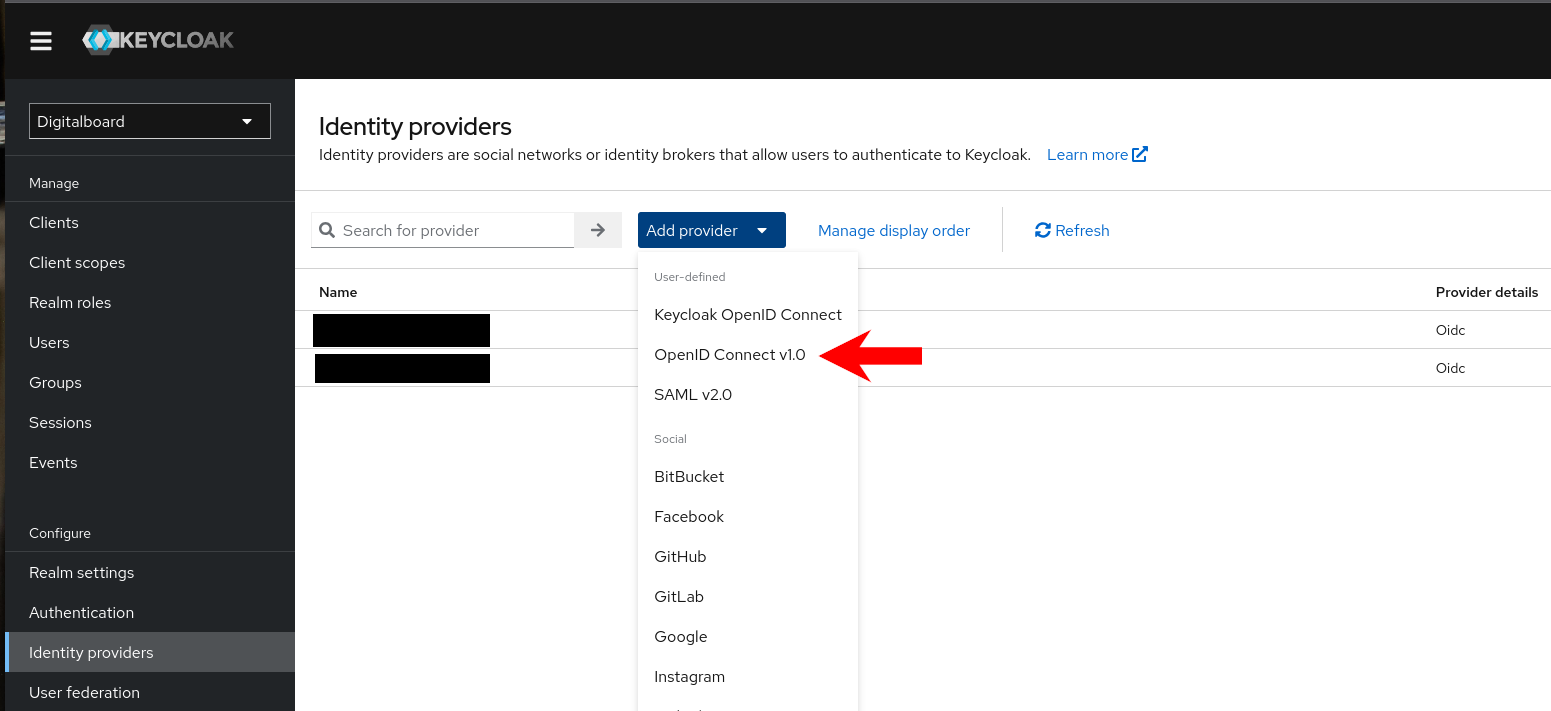
Figure 1: Adding an OIDC provider.
Step 2 — Fill the basic settings
On the Add identity provider form:
- Alias: enter your organization alias (must match the alias used in the Entra Redirect URI).
Example:test-schule - Display name: a friendly label users will see on the login page.
Example:Test Schule - Use discovery endpoint: On.
- Discovery endpoint: paste the OpenID Connect metadata document URL you copied in Entra (Step 7).
Example:https://login.microsoftonline.com/<tenant-id>/v2.0/.well-known/openid-configuration - Client authentication: keep Client secret sent as post.
- Client ID: paste the Application (client) ID from Entra.
- Client Secret: paste the client secret Value from Entra.
- Client assertion signature algorithm: leave Algorithm not specified (default).
- Click Add (or Save).
As soon as you set the Alias, Keycloak shows the Redirect URI at the top (read-only). It must exactly match the Redirect URI you registered in Entra.
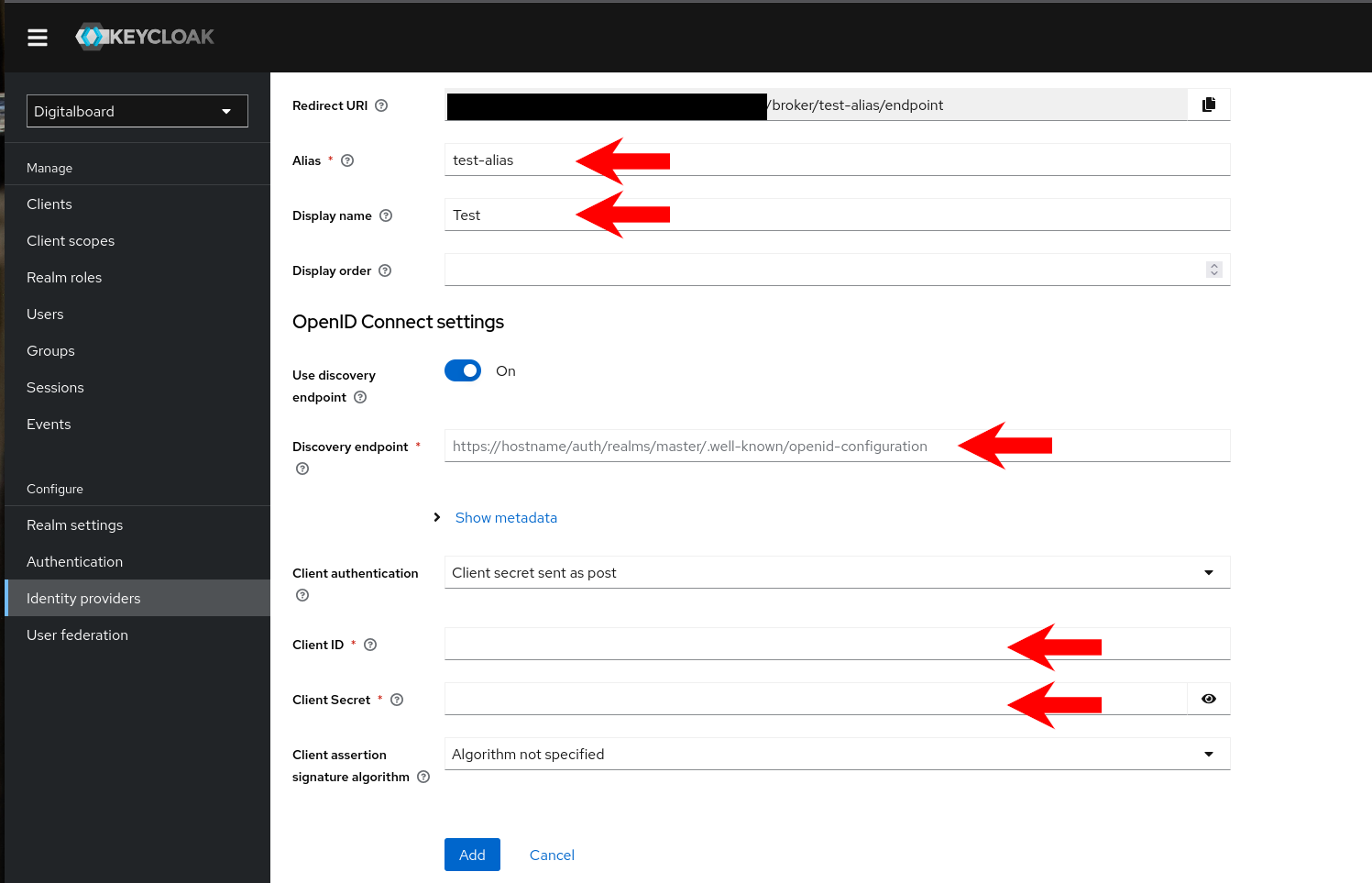
Figure 2: Basic OIDC settings in Keycloak.
Step 3 — Set recommended options
After saving, on the provider's Settings tab, adjust:
- Default Scopes:
openid profile email
(ensures Entra returns the claims you added in the Entra guide) - Trust email: On (lets Keycloak trust verified email from Entra)
- Sync Mode: Import (default; copies basic attributes into Keycloak)
- Disable User Info: Off (keep it off so Keycloak can fetch claims from the UserInfo endpoint)
- Backchannel logout: On (optional but recommended)
Click Save.
Step 3 — Check the provider appears on the login page
Back on Configure → Identity providers, you should see your new provider listed.
Open your realm's login page (or log out of the Admin Console and choose Sign in with ). You should be redirected to Microsoft, then back to Keycloak, and end up authenticated.
Troubleshooting
invalid_redirect_uri(on Microsoft): The Redirect URI in Entra must match exactly what Keycloak shows (including realm name and alias).AADSTS50105: Access to the Enterprise App is restricted. Follow Steps 10-11 in the Entra guide to assign the user/group.- No name/email in Keycloak user: Check Default Scopes include
profile email, verify Entra Token configuration (claims) and Keycloak Mappers. - Issuer/metadata errors: Ensure the Discovery endpoint uses your real tenant ID and is reachable over HTTPS from Keycloak.