

7.8 KiB
Create an Enterprise Application in Microsoft Entra ID for Keycloak
Goal: Register an Enterprise Application in Microsoft Entra so it can be integrated with Keycloak for authentication.
Prerequisites
- Admin access to Microsoft Entra ID (formerly Azure AD).
- Access to the Azure Portal: https://entra.microsoft.com.
- A running Keycloak instance (this guide only covers the Entra side).
- Organisation alias given by the keycloak operator.
Steps
Step 1 — Log in to Microsoft Entra
- Open https://entra.microsoft.com.
- Sign in with your administrator account.
Step 2 — Navigate to Enterprise Applications
- In the left-hand menu, select Enterprise applications.
- Click + New application.
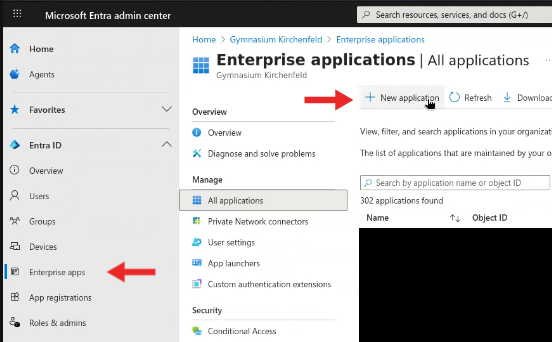
Figure 1: Location of 'Enterprise applications' in the Entra menu.
Step 3 — Create a New Application
- In the Browse Azure AD Gallery window, select Create your own application.
- Enter a name (e.g.,
Digitalboard). - Choose Register an application to integrate with Microsoft Entra ID.
- Click Create.
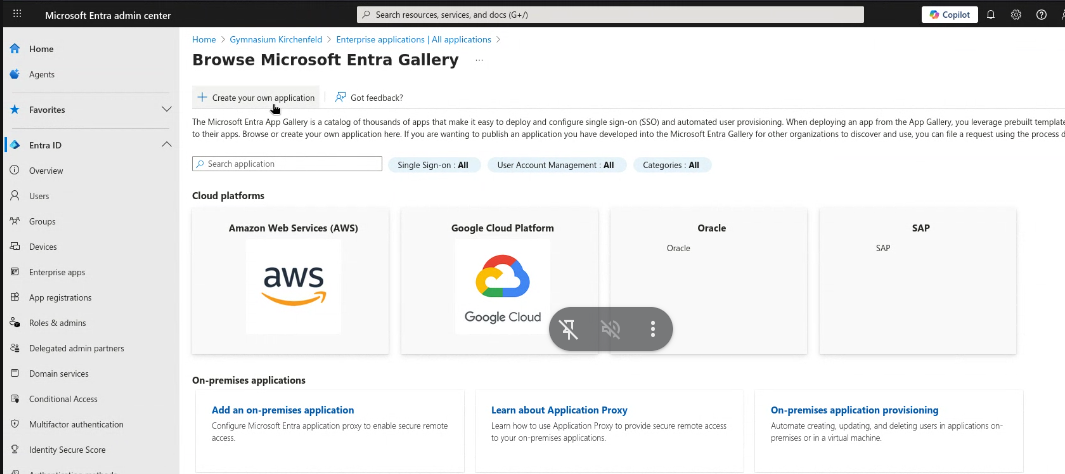
Figure 3A: Microsoft Entra Gallery.
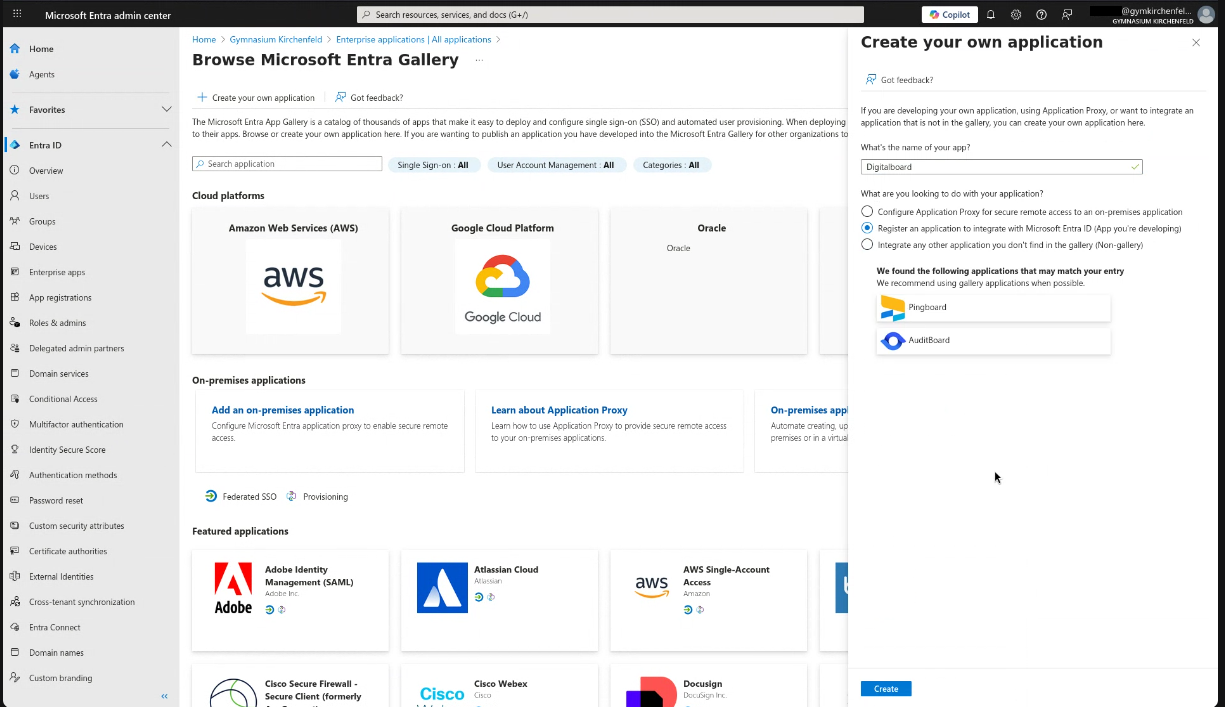
Figure 3B: Create an application for Keycloak.
Step 4 — Configure the New Application
- You are redirected to a page titled Register an application.
- Fill in:
- Name:
Digitalboard(should be prefilled) - Supported account types: Choose according to your needs:
- Single tenant (only your organization, default for Digitalboard)
- Multitenant (cross-organization)
- Redirect URI: Select Web and enter
https://auth.digitalboard.ch/realms/Digitalboard/broker/<your alias>/endpoint.
<your alias>is the alias given by Digitalboard for your organization. If unsure, ask Digitalboard.
- Name:
- Click Register.
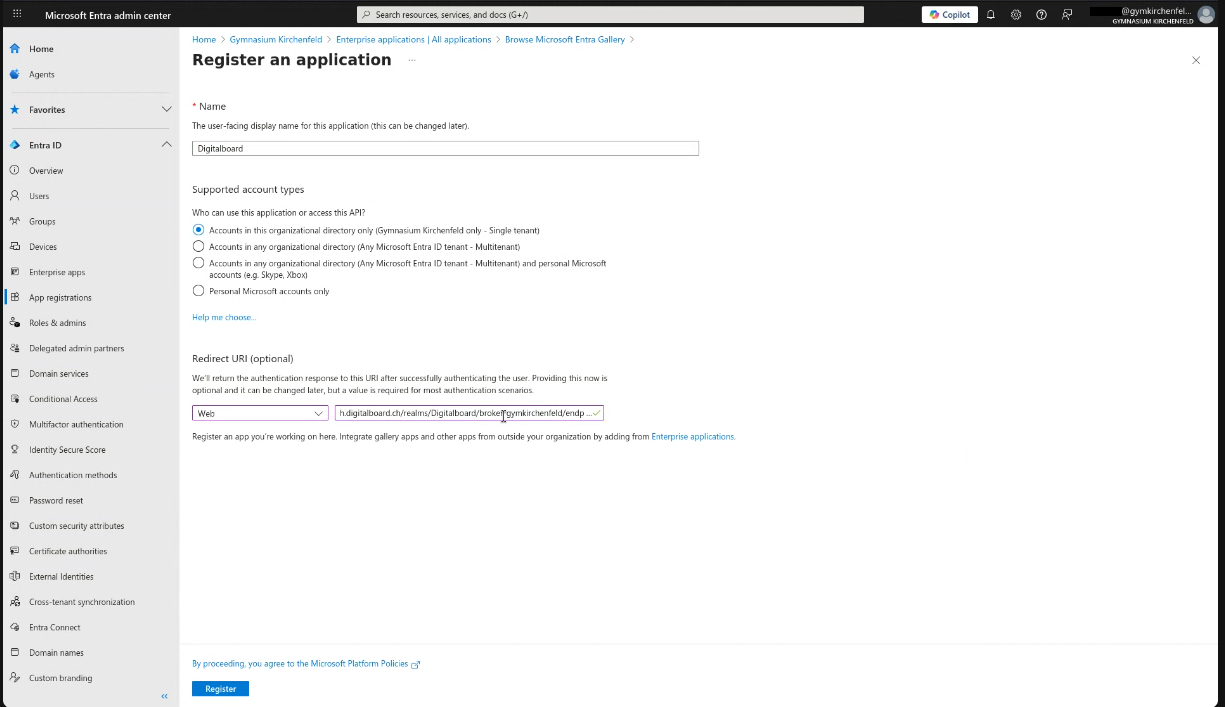
Figure 4A: Register the application.
Step 5 — Collect Application Details
- In the left-hand menu, click on Enterprise applications.
- The new application should now be searchable in the list. Click on it.
- Note down:
- Application (client) ID
- Directory (tenant) ID
- These are needed to configure Keycloak with the identity provider.
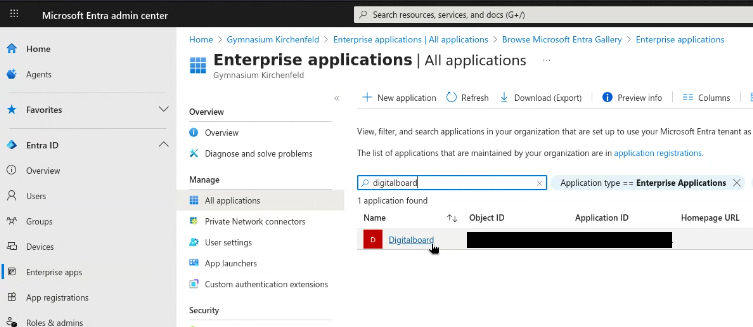
Figure 5A: Registered application inside Enterprise applications list.
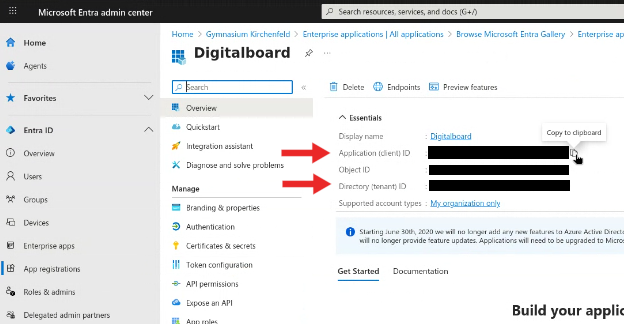
Figure 5B: Application ID and Tenant ID in the overview page.
Step 6 — Create a Client Secret
- Select App registrations in the left-hand menu.
- A list of app registrations will open. Search for your newly registered application (e.g.,
Digitalboard) and click on it. - In the left menu, select Certificates & secrets.
- Under Client secrets, click + New client secret.
- Add a description (e.g.,
Keycloak Secret, or if it expires annually,2025) and set an expiration (e.g., 12 months). - Click Add.
- Copy and save the generated Value immediately (you won’t be able to see it again later). The secret is required to configure Keycloak with the identity provider.
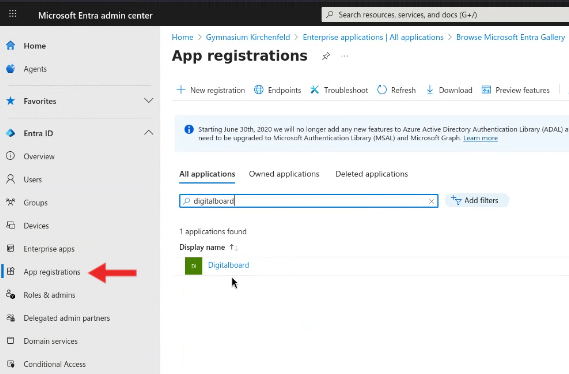
Figure 6A: App registrations list.
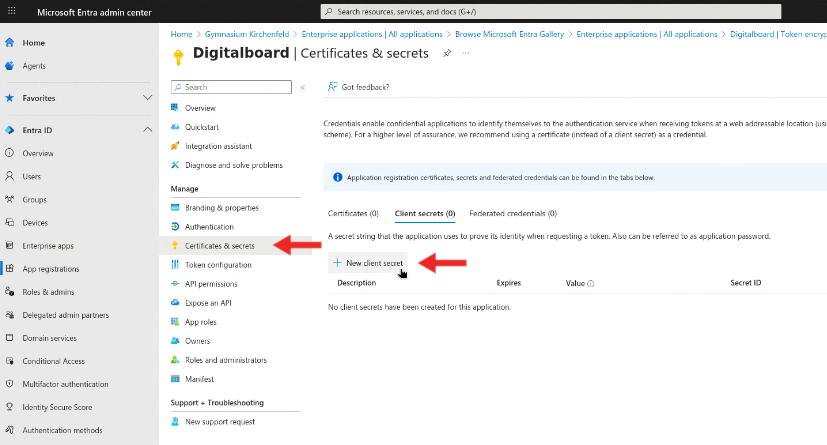
Figure 6B: Creating the client secret.
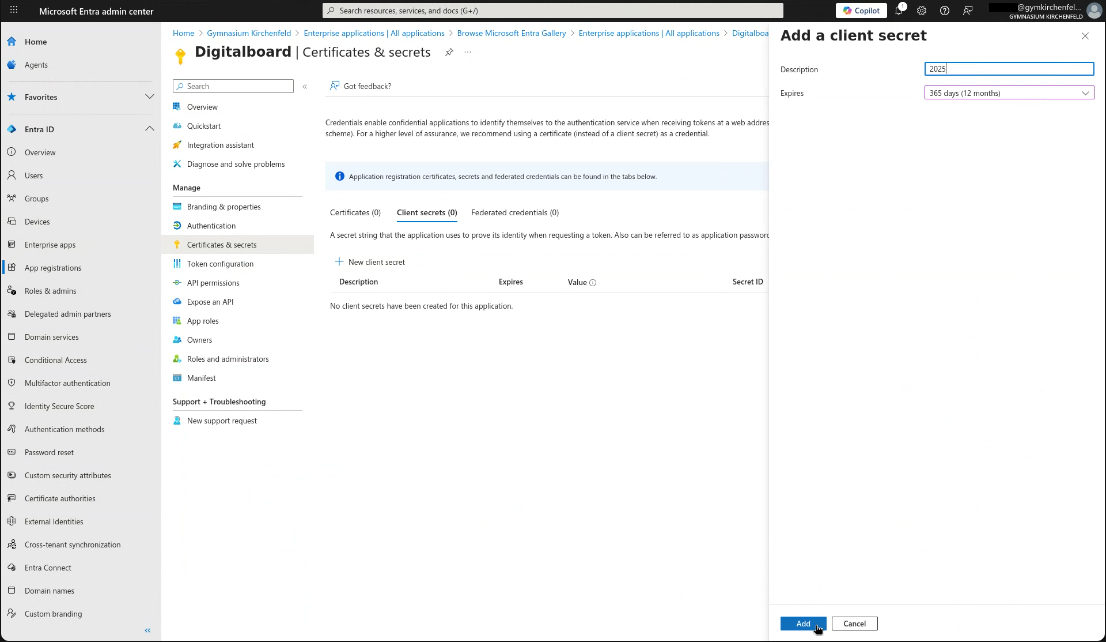
Figure 6C: Creating the client secret.
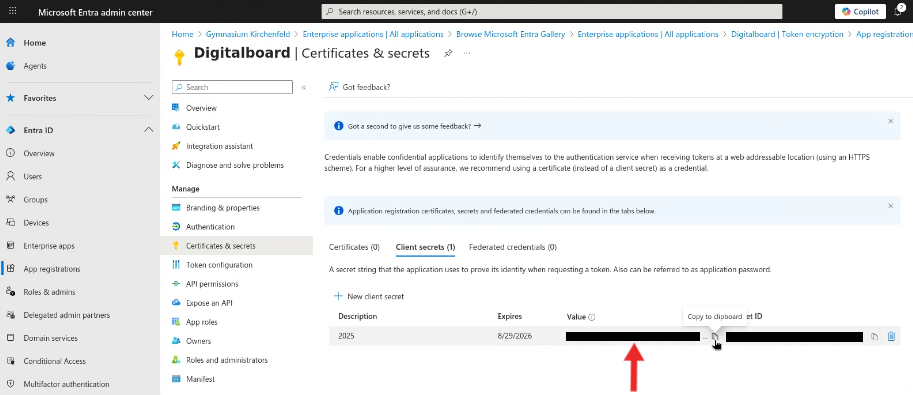
Figure 6D: Copying the client secret.
Step 7 — Copy Endpoint
- In the left menu, select Overview.
- Click on the button Endpoints.
- Copy and save the value of OpenID Connect metadata document. This is required to configure Keycloak with the identity provider.
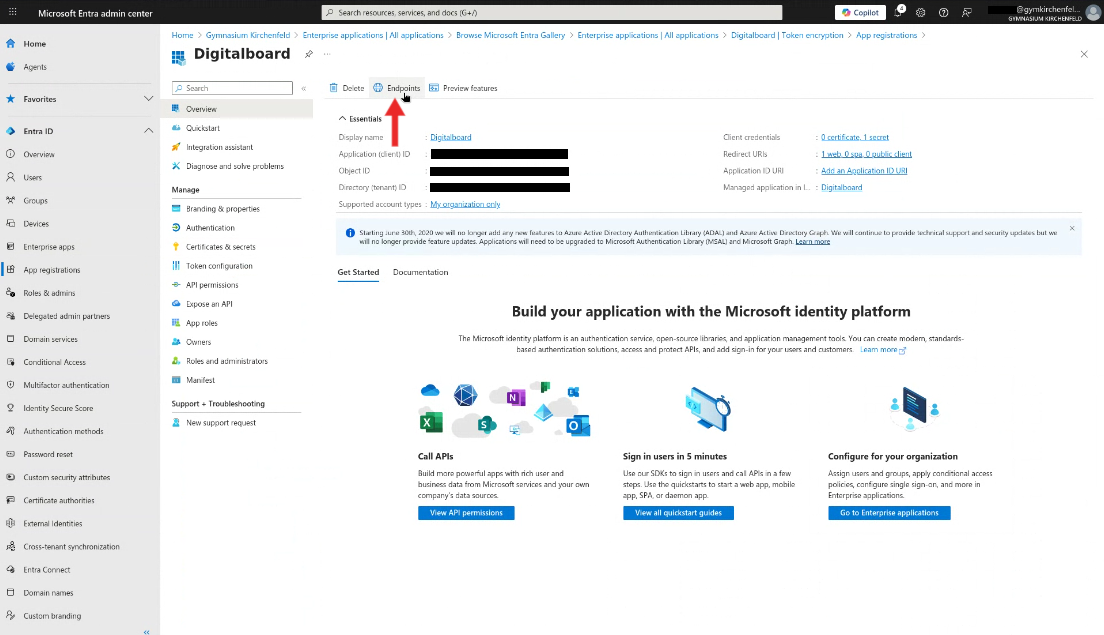
Figure 7A: The endpoint button.
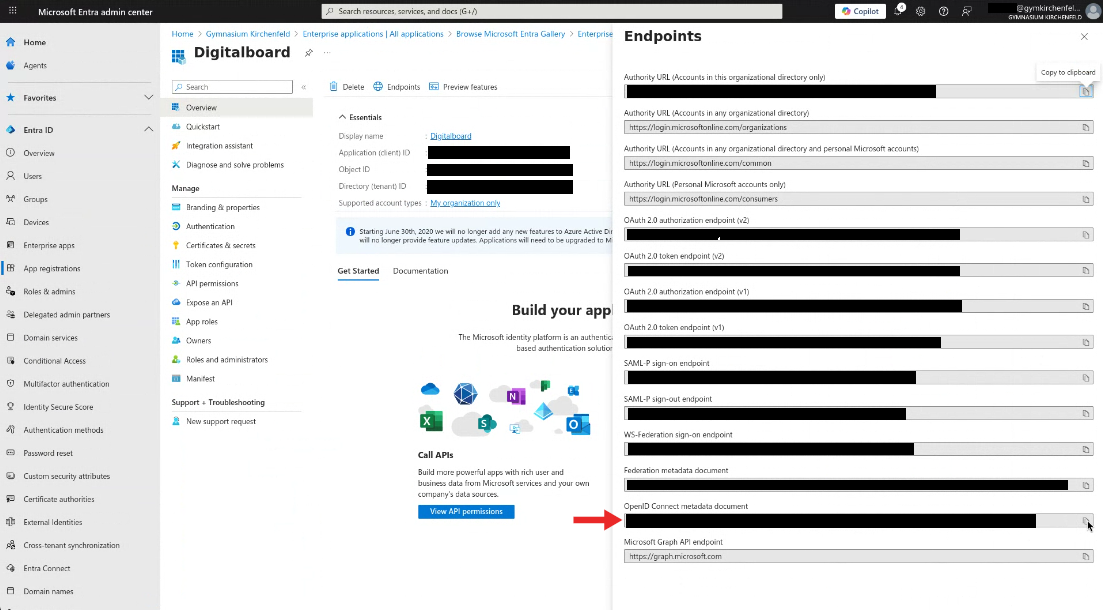
Figure 7B: The list with endpoints.
Step 8 — Configure Claims
- In the left menu, select Token configuration.
- Click Add optional claim.
- Select the following claims:
emailfamily_namegiven_nameonprem_sid
- Click Add.
- A dialog appears: Some of these claims require OpenID Connect scopes to be configured…
- Check the box in the dialog and click Add. This will automatically add the required scopes to the application.
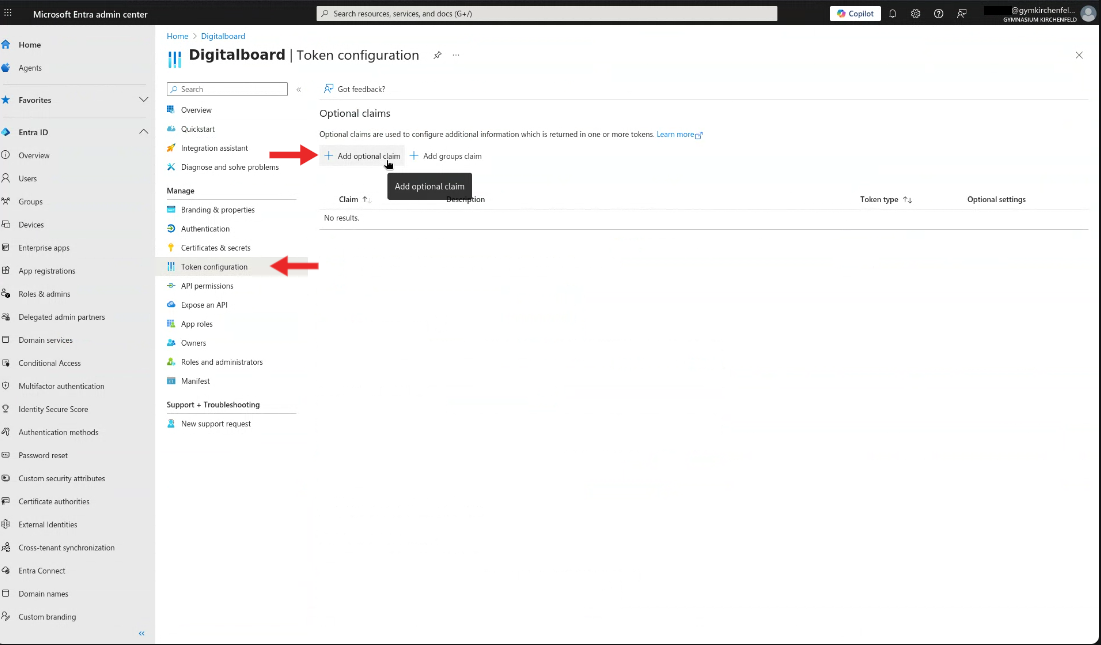
Figure 8A: Token configuration page.
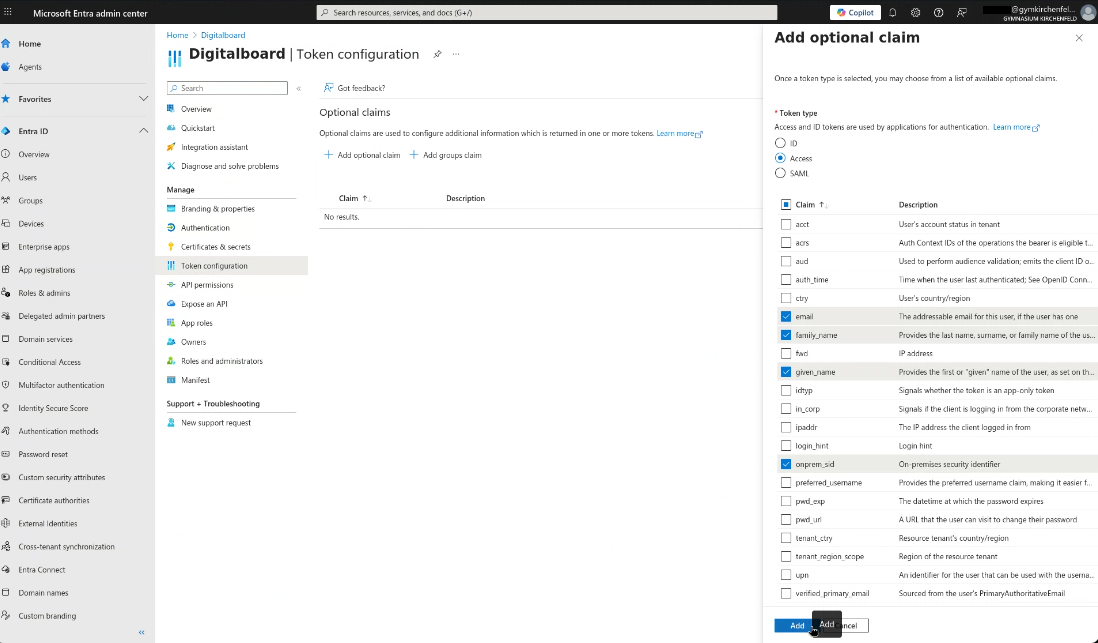
Figure 8B: Adding claims.
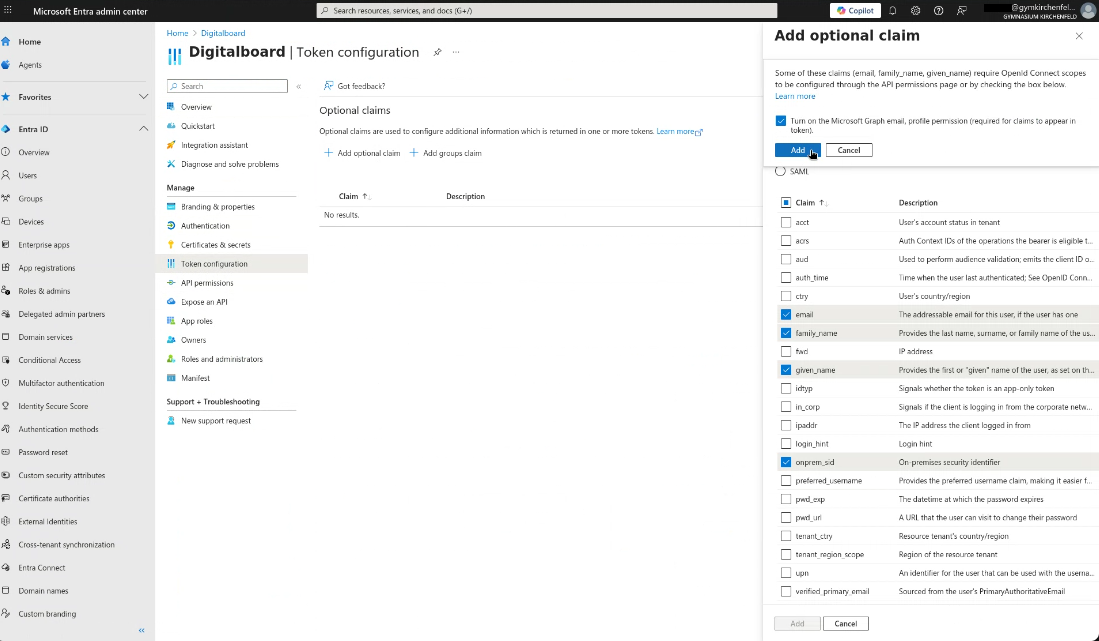
Figure 8C: Scopes dialog.
Step 9 — Grant Admin Consent for Scopes
- Go to API Permissions.
- Click Grant admin consent for .
- A confirmation dialog will open. Click Yes to grant admin consent.
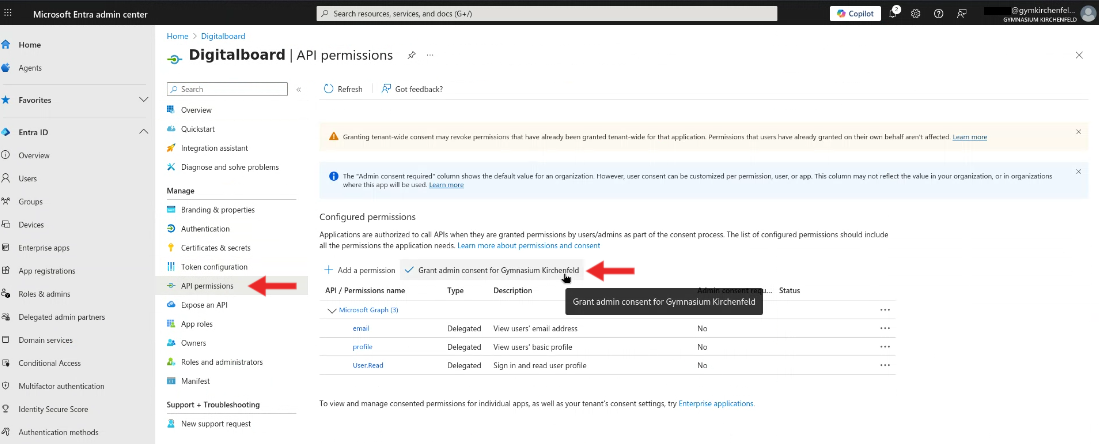
Figure 9A: API permissions page.
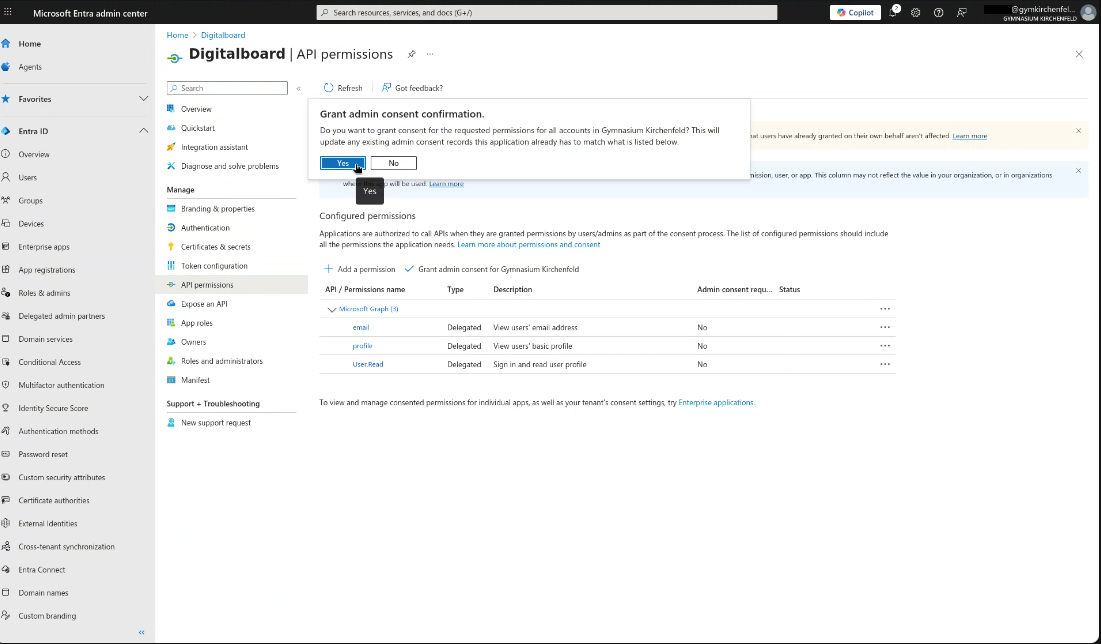
Figure 9B: Admin consent confirmation dialog.
Step 10 — Limit Access to the Application
This step is only needed if you don’t want all directory users to have access.
- Go back to the created Enterprise application (see Step 5).
- Click on Properties in the left menu.
- Set Assignment required to Yes.
- Click Save. Now only the creator of the application has access.
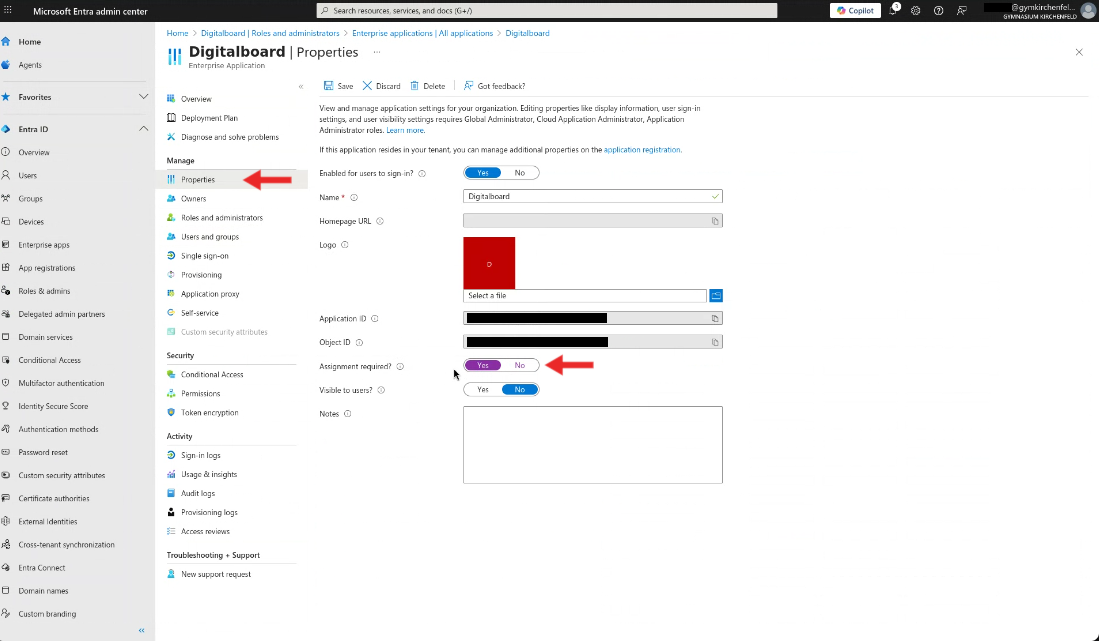
Figure 10A: API permissions page.
Step 11 — Assign Users or Groups to the Application
This step is only needed if you don’t want all directory users to have access. Requires Step 10.
- Click on Users and groups in the left menu.
- Click the button + Add user/group.
- Under Users and groups, click the blue link.
- A new dialog opens, where you can select the users/groups that should have access.
- Save the assignment by clicking Select.
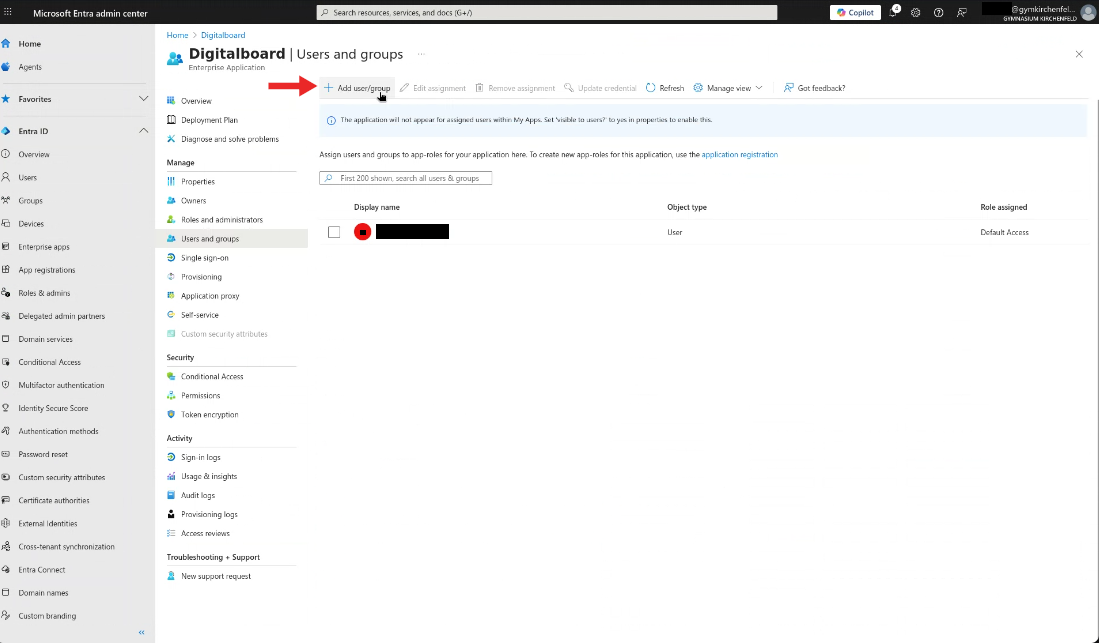
Figure 11A: Users and groups page.
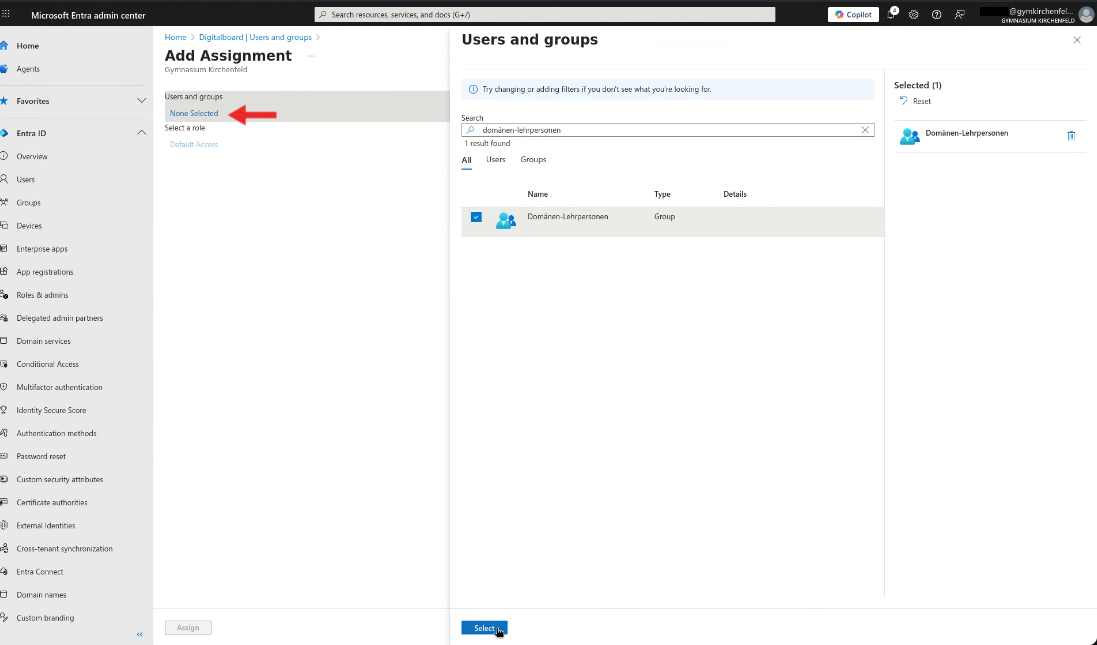
Figure 11B: Users and groups assignment dialog.
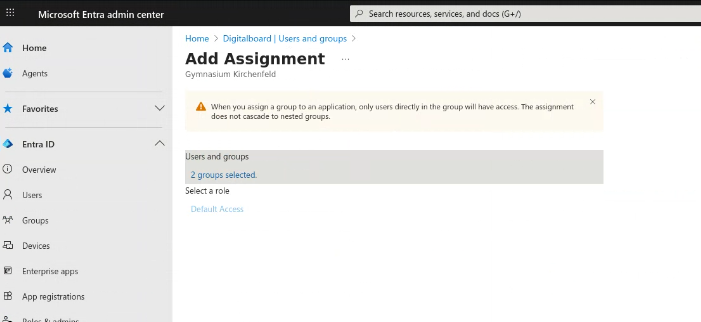
Figure 11C: Assigned groups.
Next Steps
See the Keycloak Microsoft Entra identity provider guide, or send the following information to your Keycloak operator:
- Application (client) ID (Step 5)
- Directory (tenant) ID (Step 5)
- Application (client) Secret (Step 6)
- OpenID Connect metadata document URL (Step 7)